Shipping rules
Learn what shipping rules are, why they’re used, and how they help automate carrier allocation workflows.
Please note: Shipping rules are only available to customers subscribed to our Shipments API package.
What are shipping rules?
When you submit an allocation request, Ship evaluates your shipping rules to determine which carrier services are eligible to deliver your shipment(s).
Shipping rules are a predefined set of conditions based on the attributes of your packages, such as shipping location, weight, destination, or value. These conditions are grouped together to form a ruleset.
During allocation, Ship evaluates all your defined shipping rules. Any criteria that’s stated in your shipping rules, can allow or prevent set packages from being allocated to a specific carrier service.
Why use shipping rules?
Shipping rules give you more control over how Ship selects carrier services to packages during allocation. They help ensure shipments are routed to carrier services in line with your operational, commercial, and customer service requirements.
Common use cases include:
- Ensuring high-value packages are allocated to a specific carrier service.
- Allocate lightweight parcels to an economy carrier service to lower shipping costs.
- Use a specific carrier service when shipping to a select country or region.
- Exclude carrier services from a specific shipping location (due to higher costs).
How to create / edit a shipping rule
Shipping rules are defined in the Ship user-interface:
Go to Settings > Shipping Rules.
Click Create New or Edit on an existing rule.
Give your shipping rule an appropriate Name and Description.
Set the rule as Inactive, Staged, or Active.
More information on these options below.A shipping rule is split into when matching,exclude,restrict to, or add criteria.
This allows you to catch any shipments in your workflow and have them funnelled to specific carriers for allocation.Clicking the exclude text, switches the rule to behave a in a different way when the when matching rule above is met:
- exclude: Excludes any rules you add to the section.
- restrict to: Behaves in the opposite way.
(Instead of excluding rule criteria, it includes them, and only them.) - add: Adds a tag (of your choosing) to shipments when matching rule above.
For example, any shipment with a specific weight and set of dimensions can be tagged with2-man-required. These tags can then be combined with other rules to automatically allocate to the cheapest carrier that offers a 2-man carry delivery service.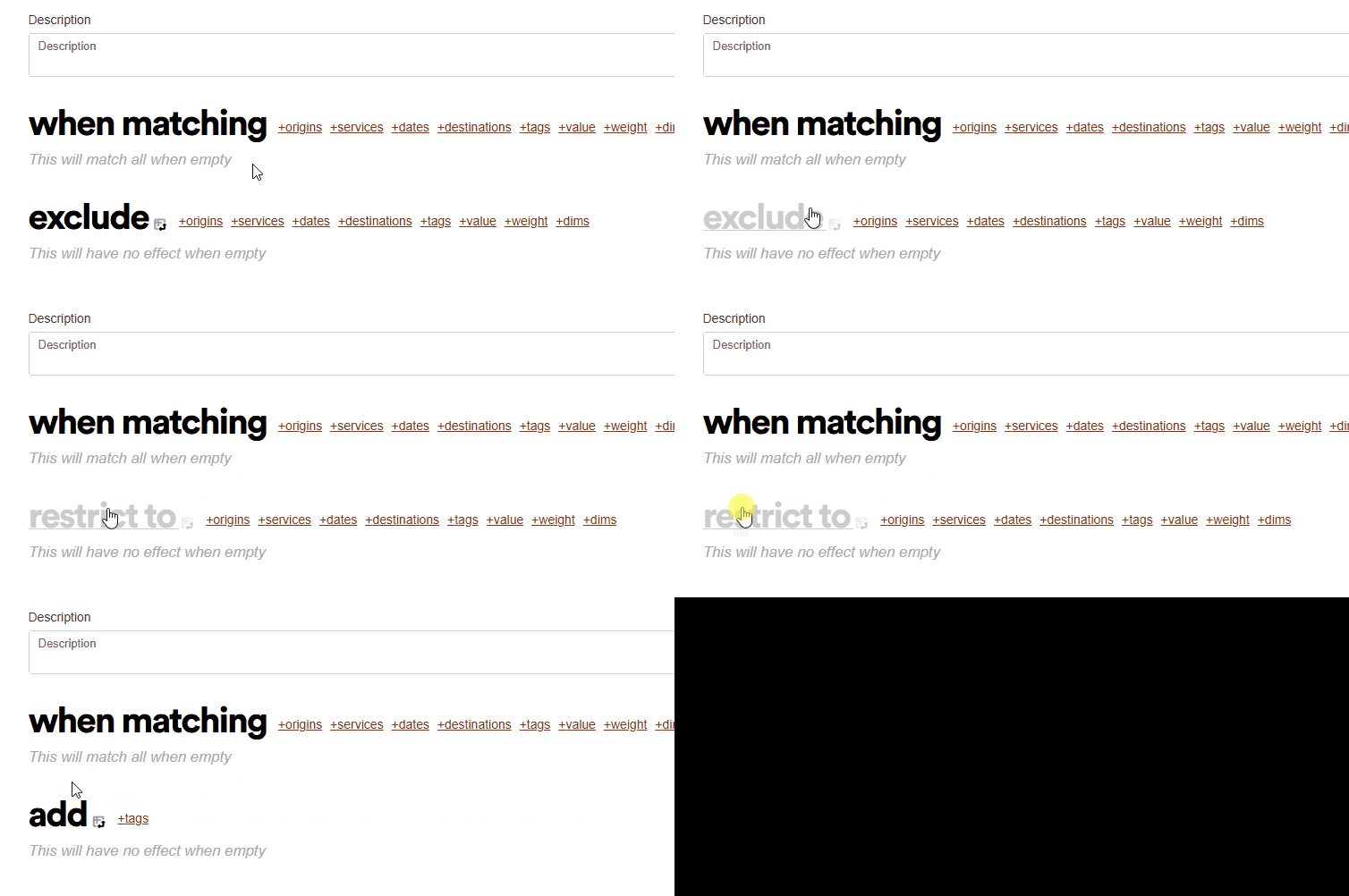
Use the rule criteria to create a custom rule that captures specific shipment packages.You can select from the following criteria to set a rule on:
- origins: A list of your shipping locations.
- services: A list of your available carrier services.
- date: Option to select a From and To date/time.
- destinations: Destination countries or regions. UK destinations can set further options using +postcodes.
- tags: Option to include a tag in the rule.
These can be tagged using rules you set on this page or on shipment registration using the Shipments API.More on this in our shipment tags developer docs.
- value: Option to set an above, below, or equal currency value.
- weight: Option to set an above, below, or equal weight (Kg).
- dims: Option to set a length and girth package dimensions (cm).
Click Save Rule at the top of the page when you’ve fully set the criteria you want to include.
Well done, you’ve created a Shipping Rule, what now?
Inactive, Staged and Active Rules
Inactive and Active states are simply the options to turn the rule on/off if you want them to be considered in your allocation process.
However, staged rules can be tested in the Ship UI to check how your rules are interacting with your shipments and allocation process without fully turning them to an active state.
You can view any unallocated or failed allocation shipments and Test Staged Rules to see which rules are affecting individual shipments in your system.
To check this, in the Ship UI:
Click Not shipped at the top of the page.
Select a shipment in an
UnallocatedorAllocation Failedstate.Hover on Quote, click Test Staged Rules.
A list of Quotes and Exclusion logs are displayed.In the Reason column, you can click the rule affected which, will immediately take you to the edit rule screen - if you wish to edit it.
What now?
You can further enhance your allocation workflow by controlling how and when packages leave your shipping locations for delivery.
In Ship, we configure this using Shipping Modes.